In this area, you organize the music, add songs, rename them, rate them, and sort them into albums, artists, and genres. You can also create playlists here.
Usually, you do not use this area on parties, but you can. For example, if a guests hands over their memory stick, you can import MP3 files while the music plays.
And if you like to create your own Karaoke, this is the place to do so.
Controls
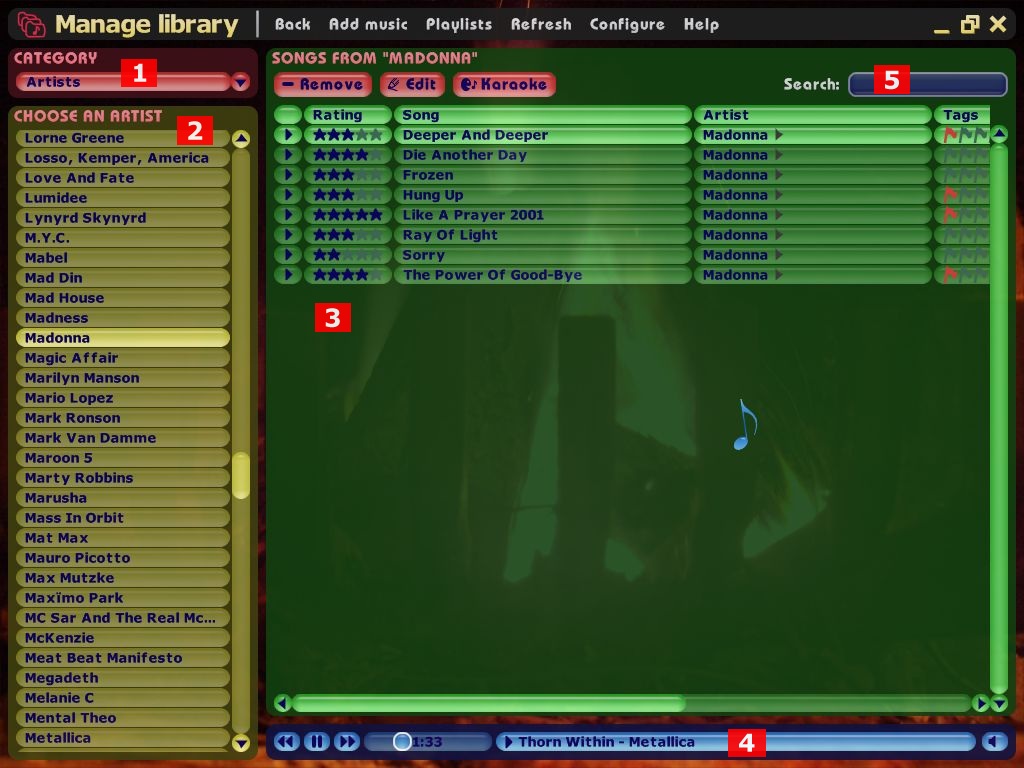
The Library Management has a similar structure to the Jukebox, but the functions focus on adding, editing, rating etc., and not on the playback of music, except for peeking into a song.
Therefore, to manage the music, you start by choosing the category 1 to select how to group the songs.
List songs by criteria
If yo select "Songs", the following groups appear in "Choose a group" 2:
- All songs:
- If you select this group, the songs area 3 shows all songs, sorted by their name.
- New songs:
- Only show the songs added in the last days or weeks. You can define the exact timespan in the Configuration.
- Popular songs:
- Here you can see songs that have often been wished by guests in the Jukebox.
- Karaoke:
- This section shows Karaoke songs, i.e. all songs where you've recorded or imported Karaoke information (text and rhythm).
- 4-star songs:
- This shows all songs with 4 or 5 stars. "Stars" is the rating you manually edit in the Library Management.
- 5-star songs:
- Shows all songs with 5 stars.
- Unrated songs:
- This shows all songs that haven't received a rating by you yet.
- Last import:
- In this section, you can see all songs you have added from CDs or MP3 files last time. Importing with the Share Music function also shows up here.
- Red songs:
- This shows all songs with a red marker flag. You can define yourself what the red flags mean.
- Yellow songs:
- This shows all songs with yellow flag.
- Green songs:
- This shows all songs with a green flag.
- Blue songs:
- This shows all songs with a blue flag.
List artists, genres, or albums
Alternatively to the above criteria, you can also let Juke That list all artists, genres, or albums. They then appear in the group area 2. When you click a group, the songs area 3 shows all their songs.
Edit songs
To edit a song, click a field in the songs list 3 (slowly) twice, or press F2. The same holds for artists, genres, and albums in the groups list 2.
To rate a song or set a colored flag, just click on it. Clicking it again removes the rating or flag.
To preview a song, double-click it or click on the play button. By double-clicking or pressing play again, the player advances. This helps you to quickly peek into a song. Alternatively, you can forward or rewind in the player 4, and you can also adjust the volume there.
To edit all options of a song at once, and to have a look into song statistics, click a song and press the Edit button above the songs list. Or press Return.
It is also possible to edit multiple songs at once. Click one song after another, while holding down Ctrl, or click the first song, and, with Shift pressed, the last one. Ctrl-A selects all songs in the songs list. When you edit a field now or open the song dialog with Return, this edits all selected songs at once. Be careful, there is no undo.
By the way, you can also work with drag-and-drop. By dragging one or more songs to the left, this sorts them into the respective artist, genre, album, or sets a colored flag.
To remove songs, select one or more songs, and click on "Remove" above the songs list, or press Del. You can choose to remove the song from Juke That, or delete the MP3 file as well.
Search
You can use the search field 5 to search in the songs list 2. The search works different from the Jukebox's search, both tailored to the respective needs. When you enter something in the field and press Return, Juke That goes through the current songs list, searching for the word. It stops where it finds it. When you press Return again, it skips to the next match.
Refresh
If you get the impression that the library does not show the right information, e.g. because you've edited, replaced, or removed the MP3 files outside Juke That, click on "Refresh" in the title bar. You can then choose:
- Check for missing songs:
- This checks each file of the library whether the MP3 file still exists. You can choose to list all errorneous songs to restore them, or remove the songs from the library as well.
- Reimport song information:
- This rereads the length and quality of each MP3 file. You can use this e.g. if you have replaced MP3 files so that they now have a better quality.
- Reimport from ID3 tags:
- Rereads the ID3 information of each MP3 file. This is handy if you have edited the information with another program and want to update Juke That now, as well.
- Write into ID3 tags:
- Writes the Juke That information into the ID3 tags once now. Alternatively, in "Configuration", you can set up that this should take place automatically each time.